How to Save and Curate LinkedIn Networking Insights
Secure high-fidelity captures of industry metrics, professional graphics cards, and textual career insights from LinkedIn.
LinkedIn hosts a wealth of valuable business cases, networking summaries, and structural diagrams. Saving them using standard PDF prints or print screens clutter your desktop, while LinkedIn's built-in "Save" feature leaves posts buried under nested menus.
Using SocialClipper, you can clip and preserve high-fidelity visual cards and articles directly from your feed into a cohesive, searchable workspace.
Supported LinkedIn URLs
SocialClipper supports direct single-click parsing for standalone LinkedIn post and update pages. Ensure the browser URL matches one of these patterns before clicking the extension:
https://www.linkedin.com/posts/[post-slug-and-id]https://www.linkedin.com/feed/update/urn:li:activity:[activityId]
Note on Feed Pages: General feeds (like linkedin.com or linkedin.com/feed/) are not post-level targets. Clicking the extension icon on a general feed page automatically opens our Smart Helper Bar in capture.html showing custom guides. You can close it instantly with the top-right close "X" button.
Step-by-Step Curation Guide
Locate and Open a Standalone LinkedIn Post URL
Find the post in your feed, click the three dots (...) in the top right of the post card, and select "Copy link to post". Paste that copied link in a new browser tab to open it on its dedicated standalone page.
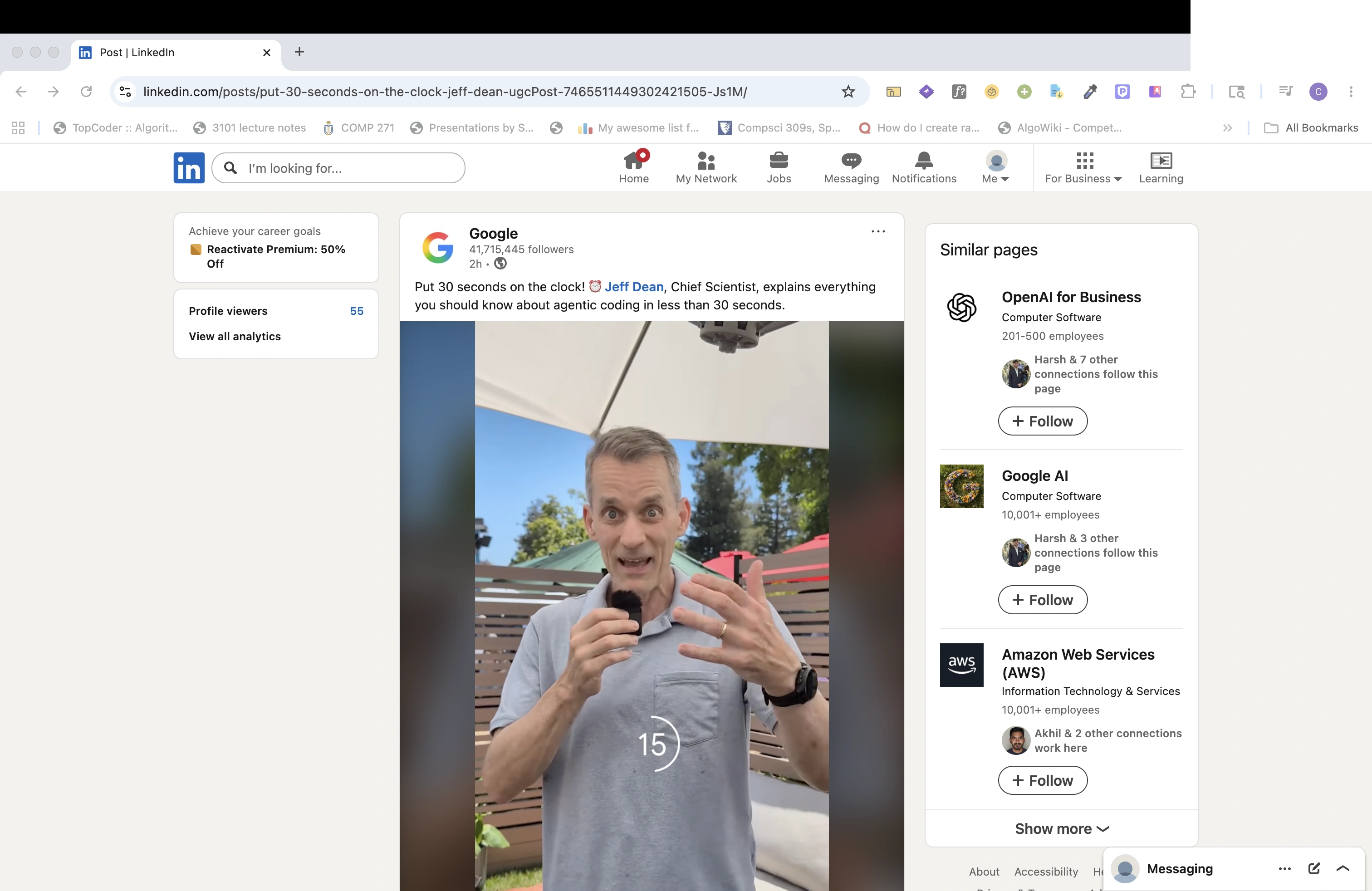 Figure 1: Standalone LinkedIn post page. Note the clean, dedicated post URL containing /posts/.
Trigger the Extension Clipper
Click the SocialClipper companion icon in your browser's upper-right toolbar. The tool dynamically parses the creator's avatar, bio, post text body, metrics, and document or image attachments cleanly.
Preview & Add Curation Labels inside capture.html
Review the parsed author metadata and content preview inside capture.html. Add tags like #ai or #networking in the labels selector box and click "Save" to push the bookmark instantly to your dashboard vault.
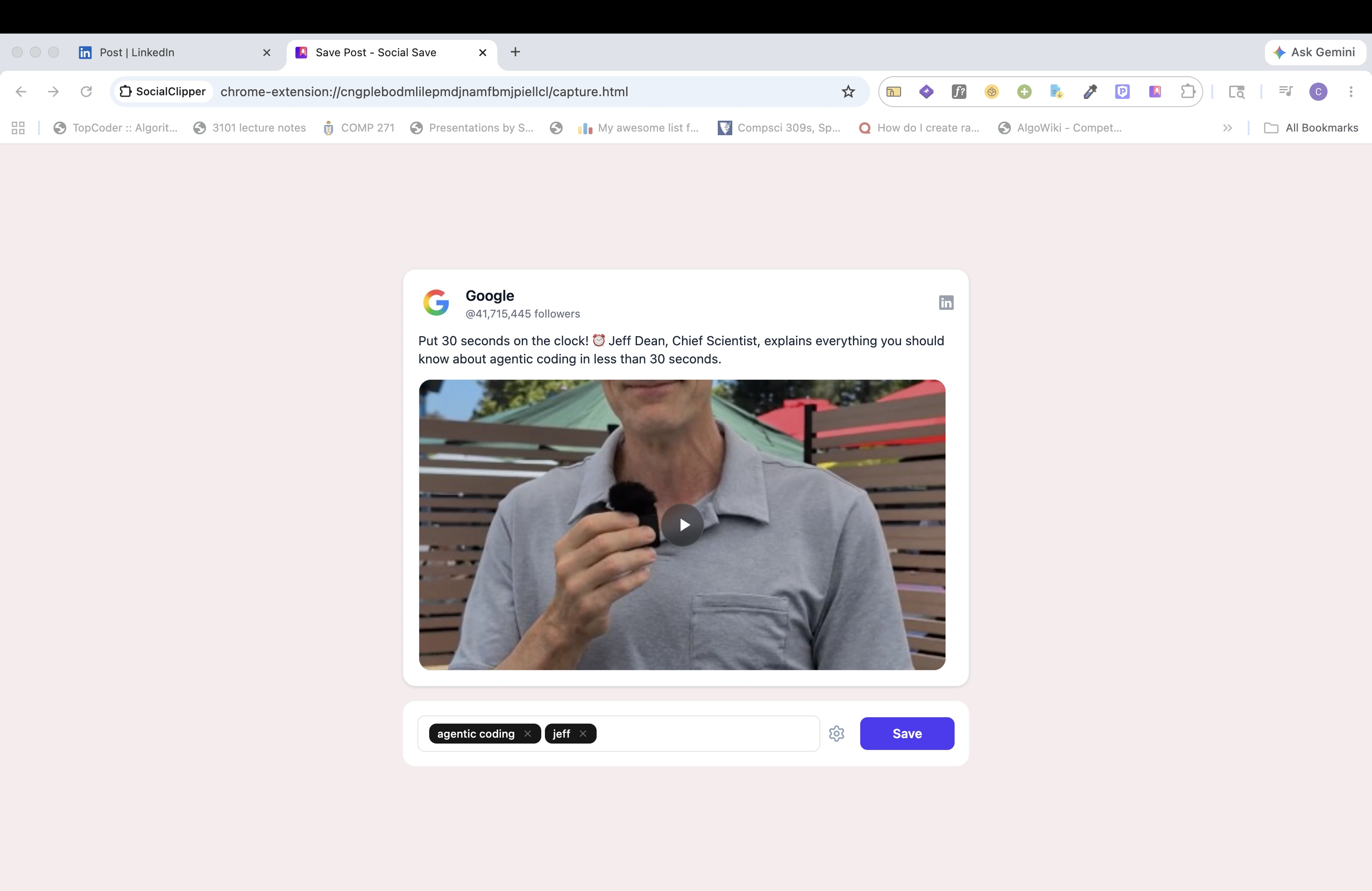 Figure 2: The SocialClipper capture window, showing the generated high-fidelity LinkedIn preview card and curation labels.
PRO-TIP: Premium Slate Dashboard Pop
LinkedIn posts often contain colorful corporate diagrams or graphics. Inside SocialClipper's Premium Slate Theme dashboard, these white cards pop brilliantly against the warm, clean slate background (bg-slate-50), providing professional visual focus.